Without a doubt, a VPN is a lifesaver when it comes to protecting online privacy. You can use them in many different environments, and they can solve many problems without any special configuration.
Besides keeping your online activities private, a VPN is also great at allowing you to access restricted content. How many times have you tried to access a service but found it unavailable in your area? Having a VPN in that situation will save you a lot of trouble.
But that's not all. If you sign up with an ISP that limits bandwidth for cost-cutting purposes, a VPN can easily improve packet loss and reduce in-game ping caused by this throttling. Besides, a VPN can prevent your ISP from snooping on your traffic and doing many other things.
13 Reasons You Should Use a VPN
All in all, VPNs are great, but for some users, how they work is still a mystery. Therefore, a variety of problems can occur whenever a user uses this type of service.
For example, you may encounter a situation where you cannot disconnect from your VPN. If you find yourself in this situation, here's how you can deal with it.
How to disconnect from the VPN?
1. Using the VPN client
Step 1: Download Private Internet Access.
Download Private Internet AccessStep 2: Install it in the computer.
Step 3: Launch it and log in to your account.
Step 4: Connect to the server (to protect privacy).
Step 5: Once you're done, click the big power button to disconnect.
Step 6: Right-click the application's icon in the system tray.
Step 7: Select Quit from the context menu.
That's it; you take control of the connection to your favorite VPN server to improve your privacy and disconnect from the VPN server when you don't need protection anymore. It sounds pretty easy, right?
2. Use built-in Windows features
Step 1: The connection icon can be found in the bottom right corner of the screen.
Step 2: Left-click on the connection icon.
Step 3: See if there are any other VPN connections other than the default one.
Step 4: If so, select it and click the Disconnect button.
You can also go ahead and delete it completely if you don't need it anymore. Some VPNs leave their connections on your PC even after you uninstall them. This can make it easier for them to re-establish a connection and restore configuration settings if you decide to reinstall the VPN.
Fix the error can't delete the VPN connection
3. Make sure the kill switch doesn't work
Some VPNs have a kill switch feature that will cut off your Internet connection if you're not connected to a secure VPN server. This will make it impossible to disconnect from the VPN if the default connection is no longer active.
For that reason, it would be a great idea to monitor this kill switch and make sure to disable it before you attempt to disconnect the VPN. Otherwise, you won't be able to access the Internet without a VPN until you do.
4. Make sure DHCP is enabled
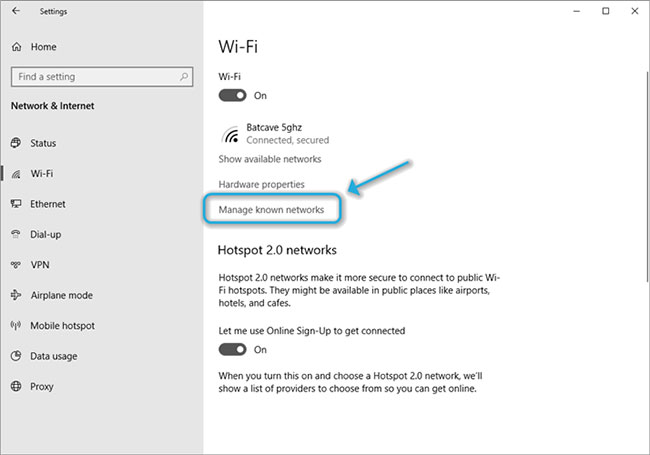
Step 1: Click Start.Step 2: Select Settings.Step 3: Go to Network & Internet section.
Step 4: (Ethernet) Select Ethernet and click on the network you are connected to.
Select EthernetStep 5: (WiFi) Click WiFi, select Manage known networks.
Click WiFi, select Manage known networks
Select the network you're connected to, and then click the Properties button.
Click Properties buttonStep 6: Click the Edit button below the IP assignment.
Click the Edit button below the IP assignmentStep 7: Select Automatic (DHCP) in Edit IP settings.
Some VPNs will disable DHCP to prevent leaks. If you usually assign IPs manually, don't modify any settings. Leave it as it is!
However, if your router normally handles IP assignment, it means that the VPN probably has DHCP disabled, and it's safe to turn it back on.
Another thing worth mentioning is that you'll want to disable the VPN kill switch while modifying the DHCP settings.
One of the "worst" problems that users often encounter on Windows 10 is the black screen error.
The black screen error can occur in some situations on Windows 10, stemming from problems related to the graphics card, the connection error between the computer and your monitor, the error occurring during the installation of the operating system, updating to new versions, etc., or simply happening randomly at any time.
In the article below, the administrator will guide you with some solutions to fix the black Windows 10 screen error.
In addition, if you encounter a black screen error on Windows 7, 8, or 8.1 computers, readers can refer to the steps to fix the error here.
Steps to fix a basic black Windows 10 computer screen
1. Black screen error during installation
Once there, try turning off the computer by pressing and holding the power button for a few seconds. If using a laptop, you can unplug the charger and remove the battery.
Unplug all unnecessa...
Microsoft is currently A/B testing a native dark style for the ChatGPT-powered Bing.com, and it has finally begun distributing out Bing.com to Google Chrome and Safari. On Windows 10 and 11, we got a pop-up that allowed Bing AI access through Google Chrome. It appears that certain people can also access Bing AI through Safari.
One of the most cutting-edge and effective language models for users is Bing AI, which is powered on ChatGPT-4. Since late February, Bing.com AI support has been accessible to Microsoft Edge users. Now, Microsoft is beginning to expand its support to all browsers, including Google Chrome and Apple Safari.
Bing AI pop-up in Chrome | Image Courtesy: Thewindowsfan.com
Anyone may now test Bing AI in Chrome thanks to a new pop-up that has begun to show in the taskbar of Windows 10 or 11. In our experiments, Google Chrome's native dark mode support allowed us to access Bing AI. The screenshot below illustrates how the white background changes to a black...
Windows 11 is considered more beautiful and aesthetically pleasing than Windows 10. However, not everyone likes the new things that Windows 11 brings. If you have already upgraded to Windows 11 but do not like its interface and do not want to return to Windows 10, you can try the customizations below.
Customizing the interface, also known as a custom interface, is not as popular as before. However, it is still very useful in case you want to refresh your computer. In this article, the administrator will show you how to customize the Windows 11 interface to become macOS.
A video tutorial on customizing the Windows 11 interface to become macOS was made by YouTube channel Tech Rifle. To be successful, you will have to combine a variety of custom software, tools, and themes. This process requires you to perform meticulously and accurately. If only one step is wrong, the results will not be as expected, and the installation process will not be successful.
Things you need to p...




Nhận xét
Đăng nhận xét