How to fix "HP Software Framework Is Not Installed" error in Windows
Nhận đường liên kết
Facebook
X
Pinterest
Email
Ứng dụng khác
Do you use the Fn + special key on your laptop to quickly perform functions like adjusting the volume or putting the computer to sleep? Did those special functions suddenly stop working on your HP computer?
Maybe you've seen this Hotkey Support error message and you're wondering how to fix it. When this message appears, the title may be HP Hotkey Support or HP Hotkey UWP Service. Both refer to drivers that come pre-installed on HP computers and allow hotkeys to run.
"HP Software Framework Is Not Installed" Error in Windows
Here's how you fix the error:
Method 1: Install HP Support Assistant
When the error message appears, the user is prompted to install the HP Software Framework from the link provided. Sorry, this link is no longer supported and doesn't work anymore. The good news is that HP Support Assistant is still available.
Visit the HP Support Assistant page. Click the red HP Support Assistant button to install.
Click the red HP Support Assistant button to install
After the file is installed, restart the computer, and the hotkeys should work again.
How to Resolve "The Requested Resource Is Already In Use" Error
Method 2: Installation of the HP Hotkey Support driver
If the hotkeys still don't work properly, look for the specific driver files on the HP website: HP Hotkey Service and HP Hotkey Service UWP.
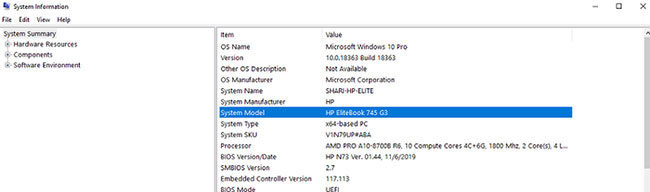
To find the right driver for your computer, you will need to find the exact device model. If the model number is not printed anywhere on the case, you can easily find it in your system information.
Just type System in the Windows search box. Then click Open and specify your model number.
Find the device model number
Once you've found your computer's model number, visit the HP support website to find the driver you need. Scroll down to identify the product and enter your model number. Then click the Software, Drivers, and Firmware tab. This will display a list of drivers that are compatible with your device.
Find HP Hotkey Support and click Download
Click Software-Solutions. Find HP Hotkey Support and click Download. Follow the on-screen instructions to install the software.
When the file installation is complete, restart your computer, and your hotkeys should work again.
One of the "worst" problems that users often encounter on Windows 10 is the black screen error.
The black screen error can occur in some situations on Windows 10, stemming from problems related to the graphics card, the connection error between the computer and your monitor, the error occurring during the installation of the operating system, updating to new versions, etc., or simply happening randomly at any time.
In the article below, the administrator will guide you with some solutions to fix the black Windows 10 screen error.
In addition, if you encounter a black screen error on Windows 7, 8, or 8.1 computers, readers can refer to the steps to fix the error here.
Steps to fix a basic black Windows 10 computer screen
1. Black screen error during installation
Once there, try turning off the computer by pressing and holding the power button for a few seconds. If using a laptop, you can unplug the charger and remove the battery.
Unplug all unnecessa...
Microsoft is currently A/B testing a native dark style for the ChatGPT-powered Bing.com, and it has finally begun distributing out Bing.com to Google Chrome and Safari. On Windows 10 and 11, we got a pop-up that allowed Bing AI access through Google Chrome. It appears that certain people can also access Bing AI through Safari.
One of the most cutting-edge and effective language models for users is Bing AI, which is powered on ChatGPT-4. Since late February, Bing.com AI support has been accessible to Microsoft Edge users. Now, Microsoft is beginning to expand its support to all browsers, including Google Chrome and Apple Safari.
Bing AI pop-up in Chrome | Image Courtesy: Thewindowsfan.com
Anyone may now test Bing AI in Chrome thanks to a new pop-up that has begun to show in the taskbar of Windows 10 or 11. In our experiments, Google Chrome's native dark mode support allowed us to access Bing AI. The screenshot below illustrates how the white background changes to a black...
Windows 11 is considered more beautiful and aesthetically pleasing than Windows 10. However, not everyone likes the new things that Windows 11 brings. If you have already upgraded to Windows 11 but do not like its interface and do not want to return to Windows 10, you can try the customizations below.
Customizing the interface, also known as a custom interface, is not as popular as before. However, it is still very useful in case you want to refresh your computer. In this article, the administrator will show you how to customize the Windows 11 interface to become macOS.
A video tutorial on customizing the Windows 11 interface to become macOS was made by YouTube channel Tech Rifle. To be successful, you will have to combine a variety of custom software, tools, and themes. This process requires you to perform meticulously and accurately. If only one step is wrong, the results will not be as expected, and the installation process will not be successful.
Things you need to p...




Nhận xét
Đăng nhận xét