How to enable the fastest copy/paste command in CMD
Nhận đường liên kết
Facebook
X
Pinterest
Email
Ứng dụng khác
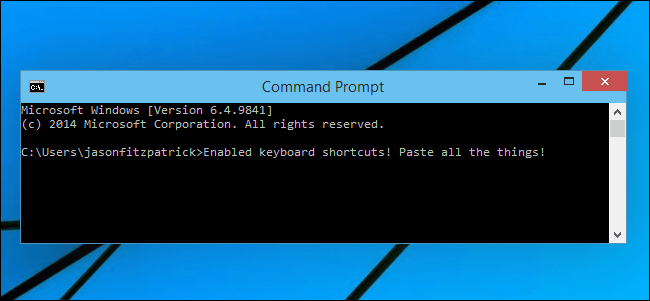
On Windows 10, it is finally supported by Ctrl + C and Ctrl + V to paste in the Command Prompt window. However, this feature is not activated by default, but you have to follow a few simple steps to enable it.
In the following article, the administrator will guide you on how to activate the Ctrl + C and Ctrl + V key combinations to copy and paste commands in the Command Prompt window.
1. On Windows 10, use Ctrl + V to enable command paste in Command Prompt
Let's learn how to enable CTRL + V in Command Prompt first, because it's easier. Always make sure your system is up-to-date.
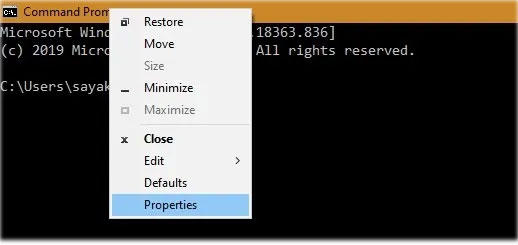
Step 1: Right-click anywhere in the Command Prompt and select Properties.
Select PropertiesStep 2: In the editing options, go to Options and select Use CTRL + SHIFT + C/V as Copy and Paste.
Select Use CTRL + SHIFT + C/V as Copy/PasteStep 3: Click OK to save this selection. Now, the copy-paste commands in Command Prompt will be activated.
Find any text or code online that you want. You can then copy this selection by right-clicking Copy or pressing CTRL+C, whichever is easier for you.
Right-clicking Copy or pressing CTRL+CStep 4: To paste text into Terminal, use the keyboard shortcut Ctrl+Shift+V. You can also paste by right-clicking.
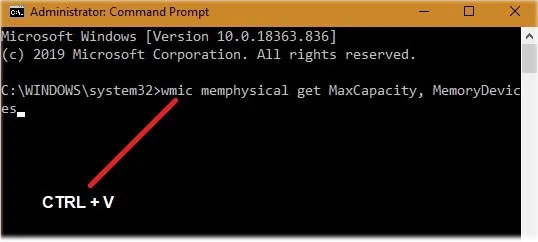
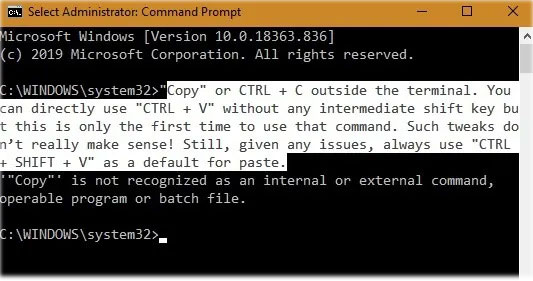
Step 5: You can also use the simpler CTRL+V to paste without the confusing Shift key. Such variations don't really make sense, except to Windows developers! Therefore, if there are any problems, you can always revert to using Ctrl+Shift+V as the default key combination for pasting.
You can also use the simpler CTRL+V to paste
How to copy commands in Command Prompt
CTRL + C in Command Prompt is a little more difficult to use than CTRL + V. That's because you can't select any text with the mouse pointer. Fortunately, there is a workaround for this.
Step 1: Use Ctrl+A or Select All from the right-click menu to highlight all text in the Command Prompt. This is just a simple tweak to select a certain line of text and copy.
Use Ctrl+A or Select All from the right-click menuStep 2: Release the mouse button. The entire screen will be deselected and the small mouse pointer will be active.
The small mouse pointer is activatedStep 3: You can easily select any row in Terminal, and that row will be in the selection of the mouse pointer. Whether you use a trackpad or a mouse, there is always a cursor that can select as much or as little of the target text as you want.
You can select any row in Terminal
You can use the above trick to select any line of text, as shown here. The text can now be copied using CTRL+C. Unfortunately, right-clicking may not work, as it will deselect everything, and then you will have to repeat the process again. Therefore, the article recommends using the keyboard shortcut CTRL+C. You can also use Ctrl+Shift+C if needed.
The text can now be copied using CTRL+C
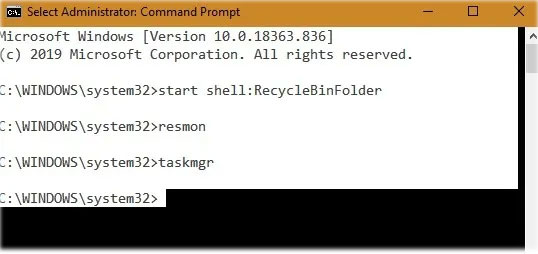
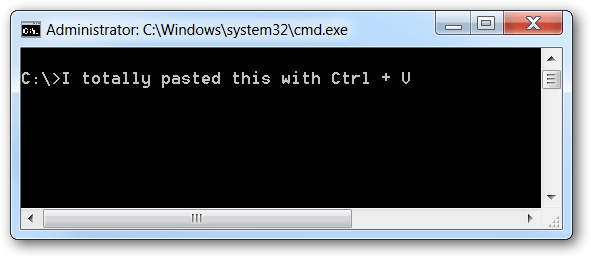
The following image shows the simultaneous use of CTRL+C/CTRL+V in a Terminal window.
Simultaneous use of CTRL+C/CTRL+V in a Terminal window
2. On Windows 10, Windows 8, Windows 7, and Windows Vista
First you press Alt + Space to open the Menu window, then you press the E key, and then the P key.
3. Creating an AutoHotkey Ctrl + V
This way, you must first download AutoHotkey to your computer and install it (if your computer has not installed AutoHotkey).
After you have installed the AutoHotkey script, you can create a new AutoHotkey or add more to the existing script. Here is the Script you can use in case of any formatting errors:
#IfWinActive Ahk_class ConsoleWindowClass
^ V ::
SendInput  Raw% vào clipboard%
trở
#IfWinActive
This script simply uses the SendInput function to send data into the Command Prompt window. This method is much faster than other methods.
Download the PasteCommandPrompt AutoHotkey Script to your computer and install it here:
One of the "worst" problems that users often encounter on Windows 10 is the black screen error.
The black screen error can occur in some situations on Windows 10, stemming from problems related to the graphics card, the connection error between the computer and your monitor, the error occurring during the installation of the operating system, updating to new versions, etc., or simply happening randomly at any time.
In the article below, the administrator will guide you with some solutions to fix the black Windows 10 screen error.
In addition, if you encounter a black screen error on Windows 7, 8, or 8.1 computers, readers can refer to the steps to fix the error here.
Steps to fix a basic black Windows 10 computer screen
1. Black screen error during installation
Once there, try turning off the computer by pressing and holding the power button for a few seconds. If using a laptop, you can unplug the charger and remove the battery.
Unplug all unnecessa...
Microsoft is currently A/B testing a native dark style for the ChatGPT-powered Bing.com, and it has finally begun distributing out Bing.com to Google Chrome and Safari. On Windows 10 and 11, we got a pop-up that allowed Bing AI access through Google Chrome. It appears that certain people can also access Bing AI through Safari.
One of the most cutting-edge and effective language models for users is Bing AI, which is powered on ChatGPT-4. Since late February, Bing.com AI support has been accessible to Microsoft Edge users. Now, Microsoft is beginning to expand its support to all browsers, including Google Chrome and Apple Safari.
Bing AI pop-up in Chrome | Image Courtesy: Thewindowsfan.com
Anyone may now test Bing AI in Chrome thanks to a new pop-up that has begun to show in the taskbar of Windows 10 or 11. In our experiments, Google Chrome's native dark mode support allowed us to access Bing AI. The screenshot below illustrates how the white background changes to a black...
Windows 11 is considered more beautiful and aesthetically pleasing than Windows 10. However, not everyone likes the new things that Windows 11 brings. If you have already upgraded to Windows 11 but do not like its interface and do not want to return to Windows 10, you can try the customizations below.
Customizing the interface, also known as a custom interface, is not as popular as before. However, it is still very useful in case you want to refresh your computer. In this article, the administrator will show you how to customize the Windows 11 interface to become macOS.
A video tutorial on customizing the Windows 11 interface to become macOS was made by YouTube channel Tech Rifle. To be successful, you will have to combine a variety of custom software, tools, and themes. This process requires you to perform meticulously and accurately. If only one step is wrong, the results will not be as expected, and the installation process will not be successful.
Things you need to p...






 Download the PasteCommandPrompt AutoHotkey Script to your computer and install it here:


Nhận xét
Đăng nhận xét