How to fix Winload.efi is missing error on Windows
Nhận đường liên kết
Facebook
X
Pinterest
Email
Ứng dụng khác
Winload.efi is an Extensible Firmware Interface, or EFI file. These files are executable files for the computer's firmware, which is mainly based on UEFI, and perform the task of downloading files to the computer's bootloader. These files are often used for a specific set of tasks, such as turning on the computer, restarting the computer, installing Windows, resetting the computer, and others. Therefore, the file winload.efi is very important. In the event that this file is lost or damaged, the Windows operating system cannot operate. This article will show you how to fix the error winload.efi is missing on Windows.
The winload.efi error message differs depending on the version of Windows you are using, but it is typically:
winload.efi cannot be found
winload.efi is missing
winload.efi is missing or contains errors
This program can’t start because winload.efi is missing from your computer
There was a problem starting [path]winload.efi. The specified module could not be found.
This application requires the file winload.efi, which was not found on this system
Note: If you see the error screen for winload.exe and not winload.efi, you can still use the remedies to fix the error that winload.exe is missing.
The winload.efi error has some error codes, like Error code: 0xc0000225 or Error code: 0xc0000001, but the file in question is always the winload.efi file located in the windowssystem32 folder.
windowssystem32winload.efi
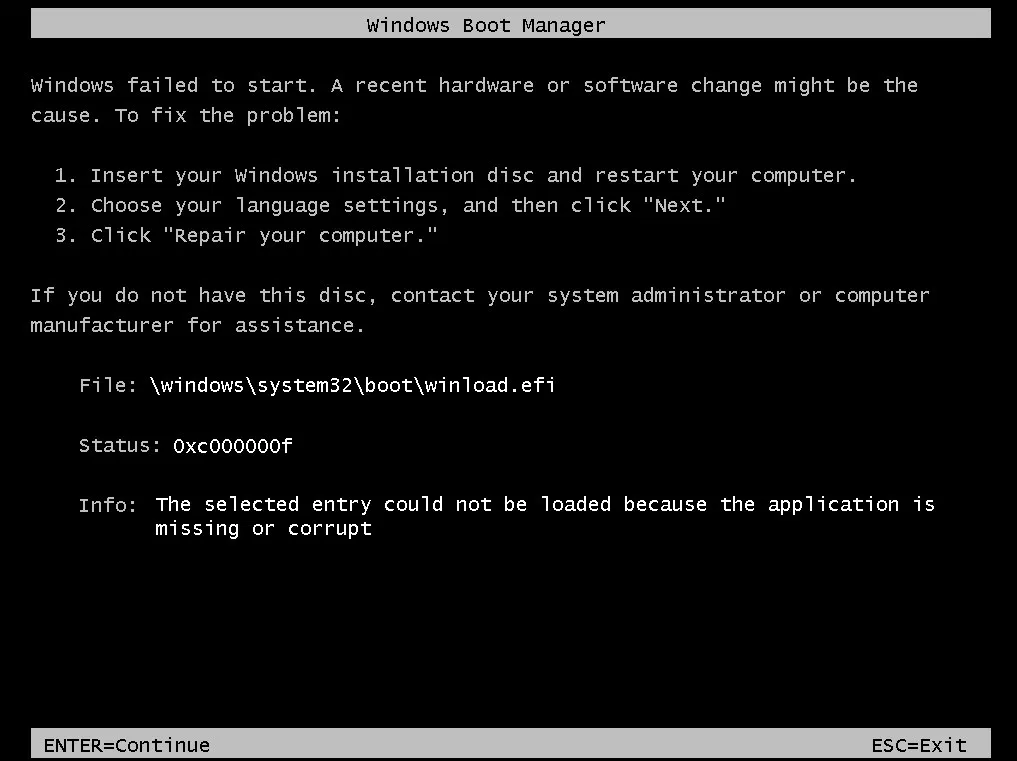
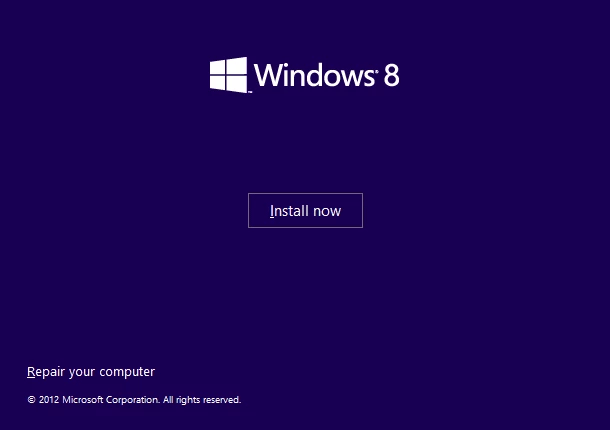
Below is the winload.efi error screen with error code 0xc0000225 in Windows 8 or 8.1:
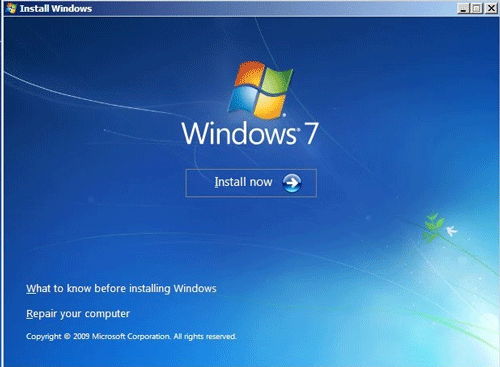
On a Windows 7 computer, the error screen will look like this:
The cause of the error
There are many reasons for this error to appear. It is worth noting that there are some important symptoms that are the main cause of the error Winload.efi is missing on Windows.
1. The file winload.efi is damaged or lost
A failed Windows update or automatic Windows update related to an important system file upgrade (especially service pack installation) like winload.efi can lead to this error. In addition, this error also occurs due to hardware failure.
2. File system is corrupted
The file system of the hard drive is corrupted due to a disk write failure, power failure, or virus attack. In this scenario, the operating system cannot find winload.efi to start properly, and the loading is stopped.
3. Due to an incorrect registry key
If the source drive and destination drive have different IDs and drive letters, you must change the registry key after copying.
4. Copy the operating system to a different hard drive
If you copy the operating system to another hard drive, this error will also show up.
5. Incorrect UEFI settings
If you set up incorrect UEFI settings for UEFI and Legacy mode on your PC, this error will show up due to different boot files and algorithms.
How to fix the error winload.efi is missing with Easy Recovery Essentials
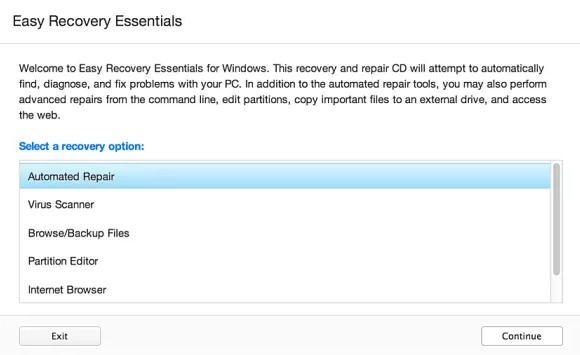
Easy Recovery Essentials có thể khắc phục lỗi winload.efi tự động với tùy chọn Automated Repair tích hợp. EasyRE có các phiên bản cho Windows XP, Vista, 7 và Windows 8.
Step 1. Download Easy Recovery Essentials, making sure to select the correct version of Windows you use.
https://neosmart.net/EasyRE/
Step 2. Record image. Refer to the article How to burn an ISO image file to a CD or DVD.
Step 3. Boot into your computer from the USB drive or Easy Recovery Essentials CD you created.
Step 4. When EasyRE runs, select Automated Repair and click Continue.
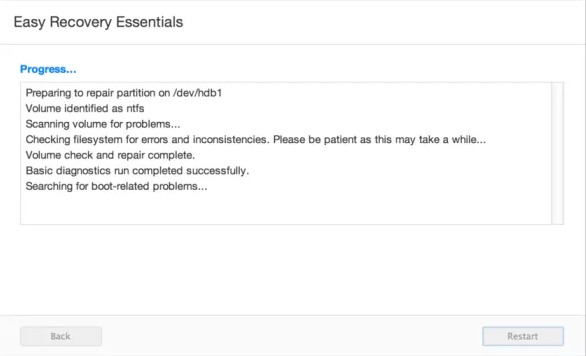
Step 5. After EasyRE scans your computer, locate and select the Windows installation drive letter from the list, then click the Automated Repair button to begin.
Step 6. Easy Recovery Essentials will analyze the selected drive, find errors, and try to fix them automatically for the drive, partition, bootsector, file system, bootloader, and registry.
Step 7. When completed, EasyRE will report the search results. Click the Restart button to restart the computer and test the change.
How to Repair the Winload.efi Error on Windows 7
1. Rebuild BCD
You can try rebuilding BCD if winload.efi errors occur due to a corrupt BCD file.
Step 1. Insert the installation disc into the computer.
Step 2. Restart the computer and boot from the disk.
Step 3. Click Repair your computer.
Step 4. At the System Recovery Options screen, select Command Prompt.
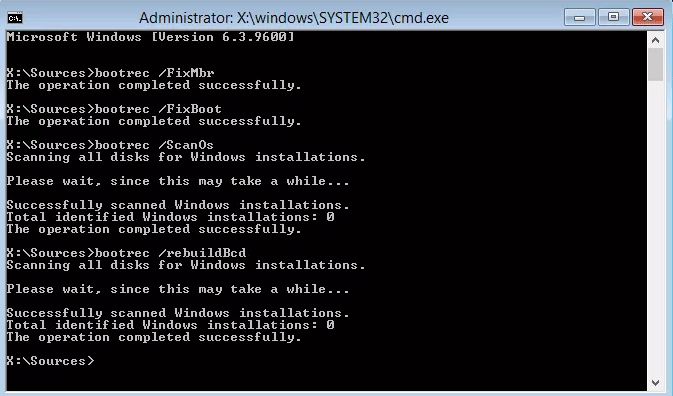
Step 6. Press Enter after each command and wait until the command runs out.
Bước 7. Restart the computer.
If the bootrec command above doesn't work, try running the same command three times before moving on to the second method below.
If you don't have an installation disc, you can check if your system has a recovery tool installed on your hard drive to access the Command Prompt. To do that, follow the steps below:
Step 1. Restart the computer.
Step 2. Press F8 as soon as the computer boots, making sure you are not using any media in the drive (e.g. CD, DVD, etc.)
Step 3. On the Advanced Boot Options screen, select Advanced Boot Options.
Step 4. Press Enter.
Step 5. Your computer will boot to the System Recovery Options screen.
2. Run the chkdsk and sfc commands
To run the chkdsk or sfc command, follow the steps below:
Step 1. Plug the installation DVD into the computer.
Step 2. Restart the computer.
Step 3. When the Press any key message appears, boot from the DVD by pressing any key.
Step 4. At the Install Windows screen, click Repair your computer or press R.
Step 5. Select Command Prompt.
Step 6. Type chkdsk command:
chkdsk c: /r
Replace c: with the Windows 7 installation drive letter.
Step 7. Press Enter.
If the chkdsk utility doesn't fix the winload.efi problem, try running sfc.
Step 1. At the Command Prompt, type the following sfc command:
sfc /scannow /offboot=c: /offwindir=c:windows
Step 2. Press Enter.
3. Disable Secure Boot
You can try deactivating Secure Boot in the UEFI boot settings menu if your Windows 7 PC uses UEFI rather than BIOS to resolve the winload.efi problem.
Step 1. Boot into UEFI immediately after starting the computer. Depending on the computer manufacturer, the key used to access the UEF menu will vary, such as F2, F8, F12, or Del or Esc. If the above keys do not work for your system, start the computer and find the key to press listed on the first screen.
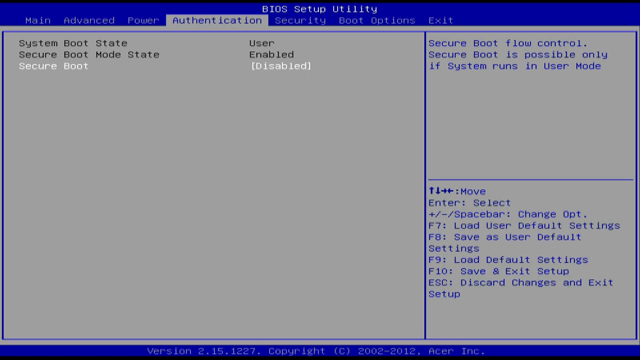
Step 2. Depending on your computer manufacturer, the UEFI menu may look different, but you need to find the Secure Boot option. This option can be in the Boot, Security, or Authentication tabs.
Step 3. Turn off the Secure Boot option by selecting Disabled or Off.
Step 4. Save your changes and exit the UEFI menu
Step 5. Restart the computer.
How to fix error winload.efi is missing in Windows 8, 10
1. Disable Secure Boot
Vô hiệu hóa Secure Boot trong menu UEFI có thể khắc phục vấn đề winload.efi is missing.
Step 1. Restart the computer.
Step 2. To access the UEFI menu, press the access key. The keys can be F2, F8, Esc, or Del.
On Dell computers, you can press the F2 key to access the UEFI menu.
Step 3. Look for the Secure Boot option in the Security, Authentication, or Boot tab. On HP computers, this option is in the Security tab.
On Acer computers, it's in the Authentication tab.
Step 4. Select the Secure Boot option and turn it off.
Step 5. Save changes
Step 6. Restart the computer.
2. Run the Automatic Repair
Follow these steps to run Automatic Repair:
Step 1. Plug in the Windows 8 installation DVD or USB.
Step 2. Restart the computer and boot from the media.
Step 3. Click Repair your computer or press R.
Step 4. Select Troubleshoot.
Step 5. Select Advanced options.
Step 6. Click Automatic repair.
Step 7. Follow the steps on the screen to complete the process.
If you don't have Windows 8/8.1 media to access Automatic Repair, you can try restarting your computer several times.
Step 1. Hold down the power button to turn off the computer.
Step 2. Press the power button to start the computer.
Step 3. As soon as the computer boots, press the power button to turn off the computer.
Step 4. Follow the steps above several times until Windows 8 shows the Recovery screen.
3. Disable anti-malware protection
If methods 1 and 2 do not solve the winload.efi error, you can disable the built-in antimalware measure in Windows 8 that is activated by default.
Step 1. Truy cập vào màn hình tùy chọn Advanced. Thực hiện như các bước trong cách 2 để truy cập vào màn hình này.
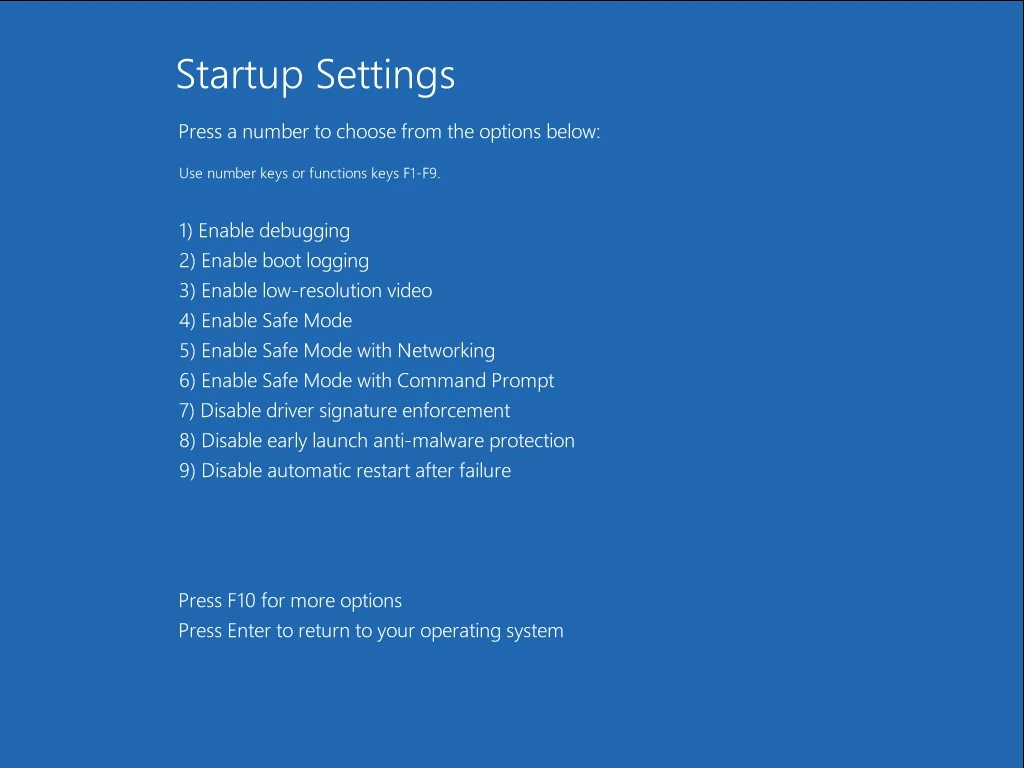
Step 2. Click Startup settings.
Step 3. Click Restart.
Step 4. The computer will restart and access the Startup Settings screen.
Step 5. Press the F8 key to select 8) Disable early launch anti-malware protection.
4. Run bootrec command
Similar to the first way to rebuild BCD in Windows 7, you can run the bootrec command on Windows 8.
Step 1. Boot from the installation DVD or USB.
Step 2. Click Repair or press R.
Step 3. Navitive to Troubleshoot > Command Prompt.
Step 4. Type bootrec command.
On Windows 8:
Step 5. Press Enter after each command.
Step 6. Remove the DVD or USB and type exit in the Command Prompt to exit the command line.
exit
Step 7. Press Enter.
Step 8. Restart the computer.
5. Repair the EFI bootloader
If your copy of Windows is installed in native UEFI mode on a GPT drive, you can try to repair the EFI bootloader if the above solutions don't help. Just follow these steps:
Step 1: Open Command Prompt.
Step 2: Execute the following commands and press Enter after each of these commands:
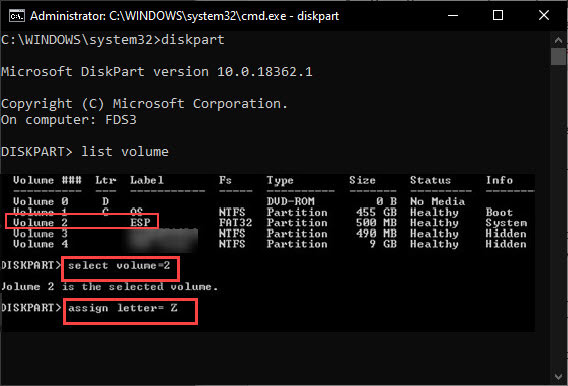
Into the diskpart environment:
diskpart
List the partitions on the storage drive:
list volume
Step 3: In the list of available partitions, look for the one labeled ESP or EFI that is approximately 100MB in size.
Step 4: To select this partition, enter the following command:
select volume N
Replace N with the volume's drive number.
Step 5: Assign a drive letter to the partition by entering the following command:
assign letter=Z
Assign a drive letter to the partitionStep 6: Exit the diskpart utility using the exit command.
Step 7: Recreate the bootloader by copying the boot files from the Windows folder with the following command:
bcdboot c:Windows /s Z: /f ALL
Regenerate the bootloaderStep 8: Wait for the copying process to complete and restart the device.
Now check if you can boot into Windows. Your winload.efi missing error should now be resolved.
We wish you success!
One of the "worst" problems that users often encounter on Windows 10 is the black screen error.
The black screen error can occur in some situations on Windows 10, stemming from problems related to the graphics card, the connection error between the computer and your monitor, the error occurring during the installation of the operating system, updating to new versions, etc., or simply happening randomly at any time.
In the article below, the administrator will guide you with some solutions to fix the black Windows 10 screen error.
In addition, if you encounter a black screen error on Windows 7, 8, or 8.1 computers, readers can refer to the steps to fix the error here.
Steps to fix a basic black Windows 10 computer screen
1. Black screen error during installation
Once there, try turning off the computer by pressing and holding the power button for a few seconds. If using a laptop, you can unplug the charger and remove the battery.
Unplug all unnecessa...
Microsoft is currently A/B testing a native dark style for the ChatGPT-powered Bing.com, and it has finally begun distributing out Bing.com to Google Chrome and Safari. On Windows 10 and 11, we got a pop-up that allowed Bing AI access through Google Chrome. It appears that certain people can also access Bing AI through Safari.
One of the most cutting-edge and effective language models for users is Bing AI, which is powered on ChatGPT-4. Since late February, Bing.com AI support has been accessible to Microsoft Edge users. Now, Microsoft is beginning to expand its support to all browsers, including Google Chrome and Apple Safari.
Bing AI pop-up in Chrome | Image Courtesy: Thewindowsfan.com
Anyone may now test Bing AI in Chrome thanks to a new pop-up that has begun to show in the taskbar of Windows 10 or 11. In our experiments, Google Chrome's native dark mode support allowed us to access Bing AI. The screenshot below illustrates how the white background changes to a black...
Windows 11 is considered more beautiful and aesthetically pleasing than Windows 10. However, not everyone likes the new things that Windows 11 brings. If you have already upgraded to Windows 11 but do not like its interface and do not want to return to Windows 10, you can try the customizations below.
Customizing the interface, also known as a custom interface, is not as popular as before. However, it is still very useful in case you want to refresh your computer. In this article, the administrator will show you how to customize the Windows 11 interface to become macOS.
A video tutorial on customizing the Windows 11 interface to become macOS was made by YouTube channel Tech Rifle. To be successful, you will have to combine a variety of custom software, tools, and themes. This process requires you to perform meticulously and accurately. If only one step is wrong, the results will not be as expected, and the installation process will not be successful.
Things you need to p...










Nhận xét
Đăng nhận xét