How to delete a stubborn undeletable file on windows
Nhận đường liên kết
Facebook
X
Pinterest
Email
Ứng dụng khác
After a long time of use, there are files that are no longer useful, and you no longer want to use those files. In addition, these files take up a lot of space on the hard drive, so you want to delete them to free up space.
Deleting stubborn files and deleting files that can't be deleted will help free up memory and reduce junk. But how do I delete these stubborn files? Read our guide below.
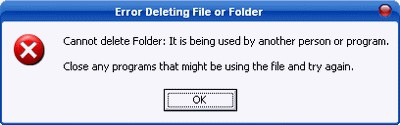
Sometimes, in some cases, when you delete an unnecessary file to free up space on the hard drive, the screen displays a message window that says you cannot delete that file:
This usually happens when the files you need to delete are contained on the hard drive partition with the file system format of NTFS, and the reason why you can't delete these files may be because the file is being used by another program. Some program or files related to that file are in use, or it can also be due to an error arising during the process of copying files to the hard drive.
If the file cannot be deleted because it is in use, you just need to turn off the programs that are using it, and you can delete it easily. Otherwise, you cannot delete the file in the usual way. Even if you don't know how, you need to reformat the hard drive to be able to erase it. However, reformatting the hard drive is one of the darkest things that computer users can think about.
1. Reboot the system
Rebooting the system is probably the simplest solution for the least "stubborn" files; that is, you restart the system and then delete it in the usual way.
2. Using the delete command in DOS
If you apply the above method and still cannot delete the file you want to delete, you can use the delete command in DOS.
To do this, first open the DOS window by clicking the Windows Start button and select "Run".
Next, type cmd in the Run dialog box, and then press Enter. At this point, the Command Prompt window will appear on the screen.
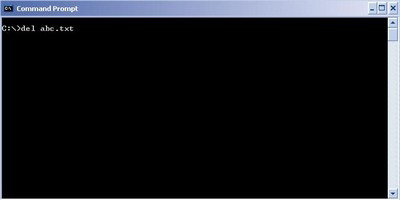
Here, you use DOS commands to go to the directory containing the file to be deleted and use the Del command in DOS to delete that file.
3. Via Task Manager
With this method, first you open the Command Prompt window.
Then press Ctrl + Alt + Delete to open the Task Manager window. In the Task Manager window, select the Processes tab, find process explorer.exe, right-click it, and select End Process.
After the process is finished, your screen will disappear entirely, except for the Command Prompt window that was opened earlier. Now, you use the DEL command in DOS to delete the file you need to delete.
After executing the DEL command, enter the Explorer command in the Command Prompt window to start Windows again.
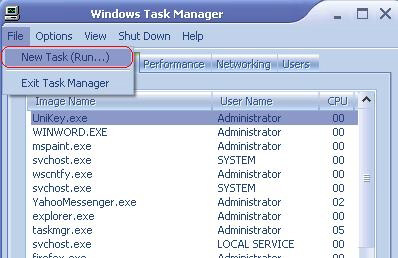
Or if, after executing the Del command, you accidentally close the Command Prompt window, then press Ctrl + Alt + Delete to open the Task Manager window.
In the Task Manager window, select File > New Task (Run) and enter explorer.
However, to do this, you need to have basic knowledge of DOS as well as its commands. Therefore, if you do not have this knowledge, try to apply it in other ways.
4. Delete the folder containing the files you want to delete
If you still can't delete the file you want to delete, try using the method of deleting the folder containing those files. If it still doesn't work, try the following: For example, let's call the folder containing the file you want to delete A, and this folder A is in another folder B. Your job is to try deleting the whole folder B (containing directory A and the file to be deleted). They will occasionally work. However, remember, the necessary data contained in A and B must be moved to other locations before deleting the whole directory.
5. Change File Explorer progress settings
By default, File Explorer launches all its windows in a single process (explorer.exe). However, it may be because your settings force File Explorer to launch separate processes, which can cause conflicts between other processes.
To open File Explorer, press Windows + E. Navigate to View > Options > Change folder and search options.
Navigate to View > Options > Change folder and search options
In the Folder Options window, switch to the View tab and find the Launch folder windows in a separate process option. Make sure it is not selected. Click Apply to save any changes.
Uncheck Launch folder windows in a separate process
If this option was not selected in the first place, you can try to see if selecting it solves the problem.
6. Turn off Preview Pane in File Explorer
Previews in File Explorer can cause conflicts like the "File is open in another program" error. Press Windows + E, switch to the View tab, and press Alt + P to close the Preview Pane.
Turn off Preview Pane in File Explorer
After closing the Preview Pane, try the operation again and see if the "File in use" error goes away.
7. Using third-party apps
Sometimes, the problematic file is locked. If trying to delete files through the Command Prompt doesn't work or if the task is too difficult, use one of these tools.
Microsoft Process Explorer
Microsoft Process Explorer
Have you ever wondered which program has a particular file or folder open? That information is now available to you. Process Explorer shows you information about opened or loaded processes and DLLs.
Process Explorer is a more powerful File Explorer. Not only does it list all running processes, but it can also tell you which process has taken your file hostage. Just open Process Explorer Search via Find > Find Handle or DL (or press Ctrl + F), enter the file name, and wait for the list of processes accessing your file. Process Explorer là một File Explorer mạnh mẽ hơn.
You cannot close the process from the search window, but you can use Process Explorer or Windows Task Manager to close the application that caused the error.
The Process Explorer screen consists of two sub-windows. The top window always shows a list of currently active processes, including the name of the account that owns them, while the information displayed in the bottom window depends on the mode in which Process Explorer is output. show: If it is in process mode, you will see the processing steps that the selected process has taken in the top window opened; if Process Explorer is in DLL mode, you will see the DLLs and memory-mapped files that the process has loaded. Process Explorer also has powerful search capabilities, which will quickly show you which processes have specific processes open or loaded DLLs.
Process Explorer includes two sub-windows
Process Explorer's unique capabilities make it useful for tracking down DLL version issues or dealing with leaks, and it provides detailed information on how Windows and applications are performing.
The detailed information is listed by Process Explorer
The purple color in Process Explorer is an indication that the files may have been packed. Red means the process is exiting (stopped). Green means a newly created process (just loaded). Light blue processes are those run by the same account that launched Process Explorer. Dark blue indicates that the process is selected (by clicking or otherwise). Pink indicates the process is a service (like svchost.exe in the picture). If you suspend a process, it will be grayed out until you resume it.
Classify processes in Process Explorer
Unlocker
If you've tried everything and still can't fix the problem, your last option is to use a third-party application.
One of the first applications for this was Unlocker. Unlocker is completely free software and an application. The application allows you to analyze the file that you need to delete to find out why it cannot be deleted, then, with just one click, end the system's relationship with the file you need to delete. Finally, you can delete the file in the usual way.
Install Unlocker on your device by downloading it here.
Unlocker will add itself to the Context Menu (right-click menu). You just need to right-click the file you want to delete, then select Unlocker.
Next, click Kill Process or Unlock/Unlock All. The kill process will close the application, and then you can proceed to delete the files you want to delete.
LockHunter
LockHunter
LockHunter will add itself to the Windows context menu. Once installed, just right-click on the locked file and select What is locking this file? This will bring up a window containing all the processes using the file. You can now choose to Unlock, Delete at next system restart, or Unlock & Rename file. In the example case, the author of the article could not unlock the file, but deleting it on the next system reboot worked.
There are also some other file-delete programs that you can use to delete this stubborn file, such as Any File Remover, IOBit Unlocker, etc.
How to delete file, folder name too long
Check out some more articles below:
What is a DLL file, and how does it work?
Today's best file compression and decompression software
What is Pagefile.sys? Is it possible to delete pagefile.sys?
One of the "worst" problems that users often encounter on Windows 10 is the black screen error.
The black screen error can occur in some situations on Windows 10, stemming from problems related to the graphics card, the connection error between the computer and your monitor, the error occurring during the installation of the operating system, updating to new versions, etc., or simply happening randomly at any time.
In the article below, the administrator will guide you with some solutions to fix the black Windows 10 screen error.
In addition, if you encounter a black screen error on Windows 7, 8, or 8.1 computers, readers can refer to the steps to fix the error here.
Steps to fix a basic black Windows 10 computer screen
1. Black screen error during installation
Once there, try turning off the computer by pressing and holding the power button for a few seconds. If using a laptop, you can unplug the charger and remove the battery.
Unplug all unnecessa...
Microsoft is currently A/B testing a native dark style for the ChatGPT-powered Bing.com, and it has finally begun distributing out Bing.com to Google Chrome and Safari. On Windows 10 and 11, we got a pop-up that allowed Bing AI access through Google Chrome. It appears that certain people can also access Bing AI through Safari.
One of the most cutting-edge and effective language models for users is Bing AI, which is powered on ChatGPT-4. Since late February, Bing.com AI support has been accessible to Microsoft Edge users. Now, Microsoft is beginning to expand its support to all browsers, including Google Chrome and Apple Safari.
Bing AI pop-up in Chrome | Image Courtesy: Thewindowsfan.com
Anyone may now test Bing AI in Chrome thanks to a new pop-up that has begun to show in the taskbar of Windows 10 or 11. In our experiments, Google Chrome's native dark mode support allowed us to access Bing AI. The screenshot below illustrates how the white background changes to a black...
Many tasks are constantly operating in the background of Windows 11, just as they were in Windows 10. File Explorer, the notification center, Settings, applications, and even the desktop are all powered by these processes. This results in a large number of processes being launched instantly upon system boot.
Third-party processes can cause issues on your desktop, but the system processes are always safe. As an example, your computer may experience lag or even freeze due to a malicious process associated with a third-party program. If a program or task is frozen, you can force it to respond by opening Task Manager, finding the program's entry, and ending the process.
In Windows 11 version 25300, Microsoft has made it possible to terminate all running processes and tasks with a single click. Windows 11 includes a new feature that can be accessed by right-clicking any app or process icon and selecting the "End Task" option.
New "End Process" button i...

 Sometimes, in some cases, when you delete an unnecessary file to free up space on the hard drive, the screen displays a message window that says you cannot delete that file:
 This usually happens when the files you need to delete are contained on the hard drive partition with the file system format of NTFS, and the reason why you can't delete these files may be because the file is being used by another program. Some program or files related to that file are in use, or it can also be due to an error arising during the process of copying files to the hard drive.
If the file cannot be deleted because it is in use, you just need to turn off the programs that are using it, and you can delete it easily. Otherwise, you cannot delete the file in the usual way. Even if you don't know how, you need to reformat the hard drive to be able to erase it. However, reformatting the hard drive is one of the darkest things that computer users can think about.
This usually happens when the files you need to delete are contained on the hard drive partition with the file system format of NTFS, and the reason why you can't delete these files may be because the file is being used by another program. Some program or files related to that file are in use, or it can also be due to an error arising during the process of copying files to the hard drive.
If the file cannot be deleted because it is in use, you just need to turn off the programs that are using it, and you can delete it easily. Otherwise, you cannot delete the file in the usual way. Even if you don't know how, you need to reformat the hard drive to be able to erase it. However, reformatting the hard drive is one of the darkest things that computer users can think about.
 Rebooting the system is probably the simplest solution for the least "stubborn" files; that is, you restart the system and then delete it in the usual way.
 After the process is finished, your screen will disappear entirely, except for the Command Prompt window that was opened earlier. Now, you use the DEL command in DOS to delete the file you need to delete.
After executing the DEL command, enter the Explorer command in the Command Prompt window to start Windows again.
Or if, after executing the Del command, you accidentally close the Command Prompt window, then press Ctrl + Alt + Delete to open the Task Manager window.
In the Task Manager window, select File > New Task (Run) and enter explorer.
After the process is finished, your screen will disappear entirely, except for the Command Prompt window that was opened earlier. Now, you use the DEL command in DOS to delete the file you need to delete.
After executing the DEL command, enter the Explorer command in the Command Prompt window to start Windows again.
Or if, after executing the Del command, you accidentally close the Command Prompt window, then press Ctrl + Alt + Delete to open the Task Manager window.
In the Task Manager window, select File > New Task (Run) and enter explorer.
 However, to do this, you need to have basic knowledge of DOS as well as its commands. Therefore, if you do not have this knowledge, try to apply it in other ways.


 Unlocker will add itself to the Context Menu (right-click menu). You just need to right-click the file you want to delete, then select Unlocker.
Next, click Kill Process or Unlock/Unlock All. The kill process will close the application, and then you can proceed to delete the files you want to delete.
Unlocker will add itself to the Context Menu (right-click menu). You just need to right-click the file you want to delete, then select Unlocker.
Next, click Kill Process or Unlock/Unlock All. The kill process will close the application, and then you can proceed to delete the files you want to delete.


Nhận xét
Đăng nhận xét