There are many services running in the background whenever you use your computer. These programs run automatically, and most of them are essential to the operation of the computer. However, there are times when these programs can cause a few problems, especially when they start using too many resources. An example of this is Svchost.exe which can sometimes use too much CPU.
How to Fix svchost.exe High CPU Usage Permanently
Method 1: Check and clean your computer
There are a number of viruses and malware that can cause this problem, so the first thing you need to do is clean up the system. Since these threats are most likely the cause of the problem, as soon as you remove them, the problem will be immediately fixed. Here are the steps to follow:
1. Look for a good antivirus to download and install. If you already have the right tool, check to make sure it's up to date.
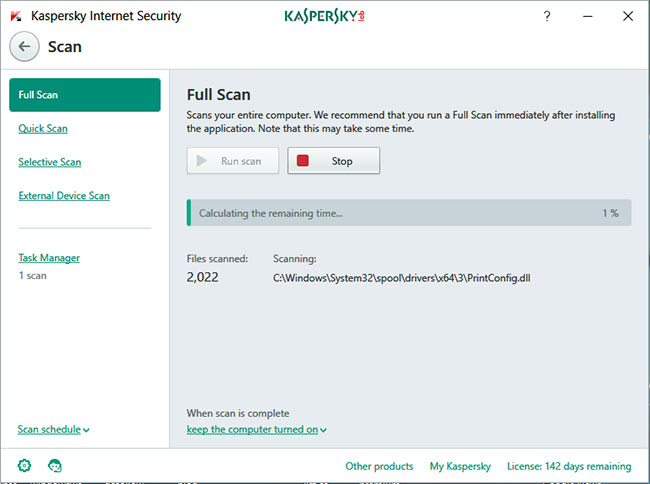
2. Launch your anti-virus program and perform a full scan of your computer.
Launch an anti-virus program and perform a full computer scan
This will take some time, depending on what you have on your computer. However, if the problem is a virus, everything will be taken care of. Conversely, if the problem persists, the cause could be something else. Let's move on to the next step.
Method 2: Windows Update
Updating Windows is a method that can solve a lot of problems you have with your computer, as each update is aimed at fixing bugs that can cause problems with your computer. Although this method is very simple and easy, it is extremely effective. Therefore, the next thing you need to do is update Windows. Refer to the article: How to keep your Windows computer up to date for more details.
Method 3: Disabling services causes high CPU usage
There are certain services that can lead to Svchost.exe using a lot of CPU. What you need to do is find the services that are causing the problem and disable them. You can follow the below steps for Windows 10:
1. Hold down Ctrl+Alt+Del.
2. In the window that opens, select Task Manager.
3. Click the Details tab, scroll through the list of services, and find the service that is taking up too much CPU.
4. Right-click on it and select Go to services.
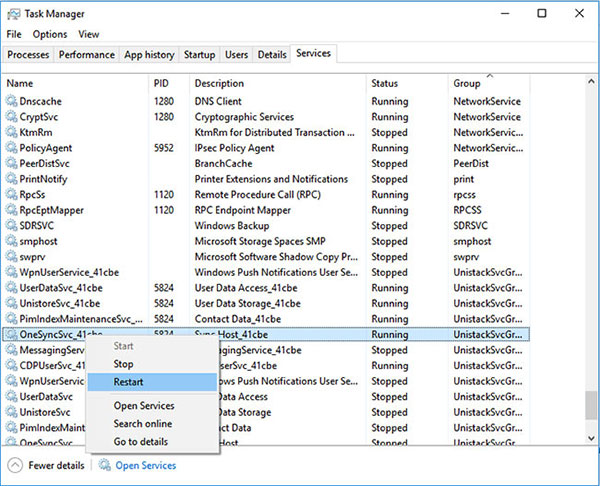
5. The Services tab will open. Locate the service that uses the svchost.exe process, right-click it, and select Restart.
6. If, after doing that, the service is still consuming too much CPU, you can right-click it again and select stop.
For Windows 7, the process is a little different:
1. Launch Task Manager.
2. Open the Process tab and find the exe process that is taking up too many resources.
3. Right-click on it and select Go to services.
4. Right-click on the process and select Restart. If this doesn't help, you should disable the service.
Disabling services causes high CPU usage
Method 4: Clear the Windows Event Viewer log
Another possible cause of the problem is that the Windows Event Viewer log file is too large. If all of the above methods fail, you may want to delete this file by following the steps below:
Clear the Windows Event Viewer log
1. Open Run by pressing Win+R.
2. Type eventvwr and press Enter.
3. On the first panel, double-click Windows Logs to open it.
4. On the same panel, right-click Application > Clear log.
5. Also, clear the logs for Security, Setup and System.
6. Once you complete this, simply restart the computer.
One of the "worst" problems that users often encounter on Windows 10 is the black screen error.
The black screen error can occur in some situations on Windows 10, stemming from problems related to the graphics card, the connection error between the computer and your monitor, the error occurring during the installation of the operating system, updating to new versions, etc., or simply happening randomly at any time.
In the article below, the administrator will guide you with some solutions to fix the black Windows 10 screen error.
In addition, if you encounter a black screen error on Windows 7, 8, or 8.1 computers, readers can refer to the steps to fix the error here.
Steps to fix a basic black Windows 10 computer screen
1. Black screen error during installation
Once there, try turning off the computer by pressing and holding the power button for a few seconds. If using a laptop, you can unplug the charger and remove the battery.
Unplug all unnecessa...
Microsoft is currently A/B testing a native dark style for the ChatGPT-powered Bing.com, and it has finally begun distributing out Bing.com to Google Chrome and Safari. On Windows 10 and 11, we got a pop-up that allowed Bing AI access through Google Chrome. It appears that certain people can also access Bing AI through Safari.
One of the most cutting-edge and effective language models for users is Bing AI, which is powered on ChatGPT-4. Since late February, Bing.com AI support has been accessible to Microsoft Edge users. Now, Microsoft is beginning to expand its support to all browsers, including Google Chrome and Apple Safari.
Bing AI pop-up in Chrome | Image Courtesy: Thewindowsfan.com
Anyone may now test Bing AI in Chrome thanks to a new pop-up that has begun to show in the taskbar of Windows 10 or 11. In our experiments, Google Chrome's native dark mode support allowed us to access Bing AI. The screenshot below illustrates how the white background changes to a black...
Many tasks are constantly operating in the background of Windows 11, just as they were in Windows 10. File Explorer, the notification center, Settings, applications, and even the desktop are all powered by these processes. This results in a large number of processes being launched instantly upon system boot.
Third-party processes can cause issues on your desktop, but the system processes are always safe. As an example, your computer may experience lag or even freeze due to a malicious process associated with a third-party program. If a program or task is frozen, you can force it to respond by opening Task Manager, finding the program's entry, and ending the process.
In Windows 11 version 25300, Microsoft has made it possible to terminate all running processes and tasks with a single click. Windows 11 includes a new feature that can be accessed by right-clicking any app or process icon and selecting the "End Task" option.
New "End Process" button i...



Nhận xét
Đăng nhận xét