14 "tweaks" to Windows Group Policy any admin should know
Nhận đường liên kết
Facebook
X
Pinterest
Email
Ứng dụng khác
Windows Group Policy is a pretty powerful tool used to configure many aspects of Windows. Most tweaking of Windows Group Policy can only be done by an administrator. If you are the administrator of many other computers in the company or you have multiple other accounts on your computer, then you should take advantage of Windows Group Policy to control the use of other users' computers.
Note:
Group Policy Editor is not available on the Home and Standard editions of Windows. You must use the Professional or Enterprise edition to use Group Policy.
How to access the Windows Group Policy Editor?
Although there are many ways to access the Windows Group Policy Editor, the simplest and fastest way is to use the Run dialog box, and this works on all versions of Windows.
To access the Windows Group Policy Editor, follow the steps below:
Press the Windows + R key combination to open the Run command window, then type "gpedit.msc" into it and press Enter to open the Group Policy Editor.
One note is that you must log in with an administrator account before accessing Group Policy. Standard accounts do not allow Group Policy access.
What can be done with Group Policy
1. Keep track of account logins
On Group Policy, you can "force" Windows to "record" all successful and failed logins on the computer from any user account. You can use this information to track whether strangers have illegally logged into your Windows computer.
On the Group Policy Editor window, navigate to the path below:
Computer Configuration => Windows Settings => Security Settings => Local Policies => Audit Policy
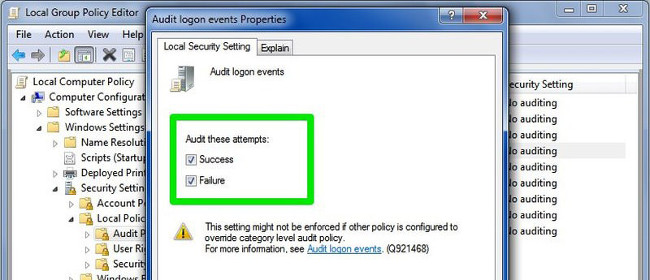
Then find it and double-click on Audit logon events.
At this time, the Audit logon events Properties dialog box appears on the screen. Here you check Success and Failure, then click OK, and Windows will start "recording" the logins made on your computer.
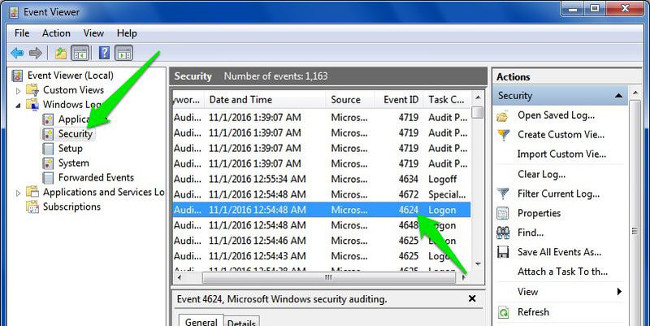
To view these logs, you must access another useful Windows tool, Windows Event Viewer. To open Windows Event Viewer, first press Windows + R to open the Run command window, then type eventvwr into it and press Enter.
Expand the Windows Logs section, then click the Security button. In the middle pane, you will see all recent events. Your task is to find the successful and failed login events in this list.
Successful login events have "Event ID: 4624", and failed login events have "Event ID: 4625". Just look up the event IDs to find the logins and see the exact date and time of the login.
Double-click on these events to display the login account name details.
2. Control Panel access should be restricted
The Control Panel is considered "central" to Windows settings, including security settings and usage settings. However, if you fall into the wrong hands, you will not be able to predict what will happen. To prevent possible bad cases, it is best to block Control Panel access.
To do this, on the Group Policy Editor window, navigate to the key:
User Configuration => Administrative Templates => Control Panel
Here, find and double-click on the option named "Prohibit access to the Control Panel".
On the Prohibit access to the Control Panel window, click the Enable option to block access to the Control Panel. Now the Control Panel option will be removed from the Start Menu, and no one will be able to access the Control Panel anymore, even when opening the Control Panel on the Run command window.
If you try to open the Control Panel, an error message will be displayed on the screen.
3. Prevent other users from installing new software on the system
It will take a long time to be able to "clean up" the hordes of viruses and obnoxious malware that attack your computer when you install any software. Therefore, to ensure the safety of the system as well as to ensure that other users do not illegally log in and install malicious software and programs on your computer, you should disable the Windows installer in Group Policy.
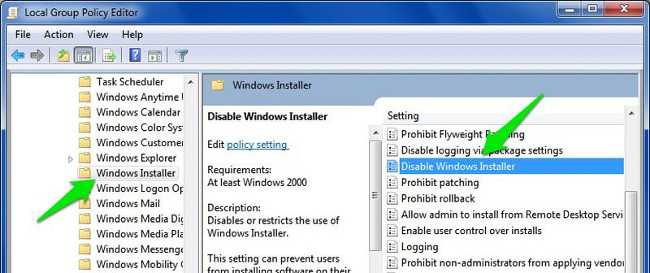
On the Group Policy window, navigate to the key:
Computer Configuration => Administrative Templates => Windows Components => Windows Installer
Here, find and double-click on "Disable Windows Installer".
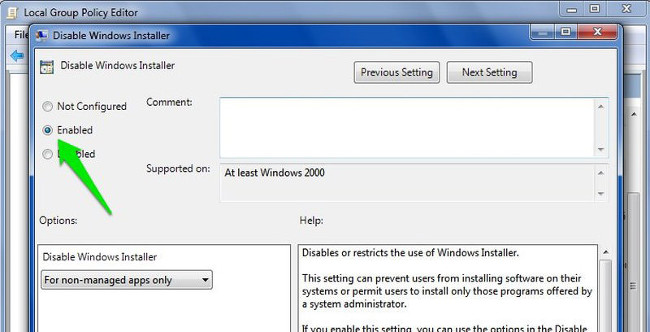
On the Disable Windows Installer window, select the Enable option, and then select Always from the drop-down menu in the Options section.
From now on, other users cannot install any new software on your computer, although they can download and store it there.
4. Disable access to removable storage devices
Portable storage devices like USBs or other devices are quite useful for copying and storing data, but nevertheless, this can also be one of the "paths" for viruses to attack your computer. friend.
If someone accidentally (or intentionally) connects an infected storage device to your computer, the virus can attack your entire computer system and cause some serious problems with your computer.
To block others from connecting removable storage devices to your computer, on the Group Policy window, you navigate by key:
User Configuration => Administrative Templates => System > Removable Storage Access => Removable Disks: Deny read access
Here, you find and double-click on "Removable Disks: Deny read access".
On the Removable Disks: Deny read access window, click Enable to enable the option, and your computer will not read any data from external storage devices (such as USB drives, etc.). Also on the Group Policy window, there is an option below called "Removable Disks: Deny write access" If you don't want anyone to write (paste) data to an external storage device, you can enable the option.
5. Prevent a specific application from running
In addition, Group Policy also allows users to create a list of applications toprevent the activities of these applications.
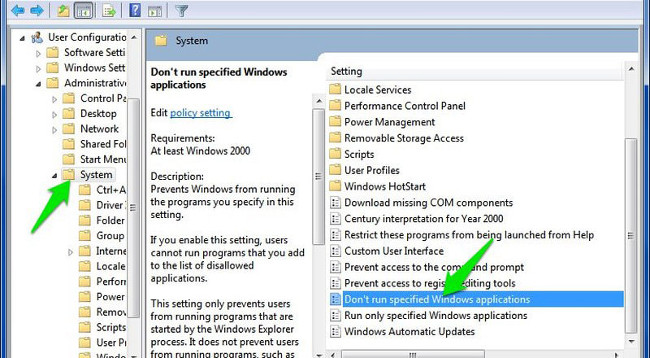
To do this, on the Group Policy window, navigate to the key:
User Configuration => Administrative Templates => System => Don’t run specified Windows applications
Here, you find and open the option "Don't run specified Windows applications".
Click Show to start compiling a list of the applications you wish to prohibit on the Don't run specified Windows applications window after clicking Enable to activate the option.
To block an application, you must enter its executable name with the.exe extension, such as CCleaner.exe, CleanMem.exe, or lol.launcher.exe, when creating a list.
The best way to find the exact executable name of the application is to find the application folder on Windows File Explorer, then copy the exact executable name of the program (with the extension ".exe").
Enter the executable name in the list, and then click OK to start the application blocking process.
Also on the Group Policy window, there is an option to Run only specified Windows applications. If you want to disable all types of apps except for some important ones, you can use the option to create a list of apps that you want to block.
6. Turn off the Command Prompt and the Windows Registry Editor.
Command Prompt on Windows allows you to enter commands for the computer to execute and access the system. However, hackers are able to obtain private information by using Command Prompt (CMD) commands.
Both Command Prompt and Windows Registry Editor are tools that can disable all activities on Windows computers, especially Windows Registry Editor.
If you want to ensure safety and security issues on your computer, you should disable Command Prompt and the Windows Registry Editor.
To do this, on the Group Policy window, navigate to the path:
User Configuration => Administrative Templates = > System
Here, you find and double-click on the options named "Prevent access to the command prompt" and "Prevent access to registry editing tools". Next, on the Prevent access to the command prompt window and the Prevent access to registry editing tools window, click Disable to disable these options.
Other users will no longer be able to access Command Prompt or Registry Editor from now on.
7. From My Computer, hide the disk partition
If a particular drive on your computer contains sensitive data and you don't want other users to access and steal that data, then you can hide that drive from My Computer and others users cannot find it.
To do this, on the Group Policy window, navigate to the path:
User Configuration => Administrative Templates => Windows Components => Windows Explorer => Hide these specified drives in My Computer
Here, find and double-click on the option named "Hide these specified drives in My Computer".
In the Hide these specified drives in My Computer window, click Enable to enable the option.
After activating the option, from the Options drop-down menu, select the drive you want to hide. Finally, click OK to hide that drive from the system.
8. Tweak the Start Menu and Taskbar
Group Policy allows you to customize the Start Menu and Taskbar to your liking. These tweaks are available to both administrators and regular users.
To tweak the Start Menu and Taskbar, on the Group Policy Editor window, navigate to the path:
User Configuration => Administrative Templates => Start Menu and Taskbar
All of the changes, along with explanations, can be found here.
The tweaks are pretty straightforward. Besides, Windows also provides a detailed description of each tweak.
You can perform a number of actions, such as changing the Power button function on the Start Menu, preventing users from pinning programs on the Taskbar, restricting searches on the Search option, hiding notifications in the system tray, hiding battery icons, preventing users from changing the Taskbar and Start Menu settings, preventing users from using the Power options (shutdown, hibernate, etc.), removing the Run option from the Start Menu, etc.
9. Disable the forced restart
While you can enable some options to delay, Windows 10 will eventually restart the computer on its own if there are pending updates. You can take back control by activating a Group Policy entry.
When you disable the force restart, Windows will only apply pending updates when you restart yourself.
You will find it here:
Computer Configuration > Administrator Templates > Windows Components > Windows Update > No auto-restart with logged on users for scheduled automatic update installations
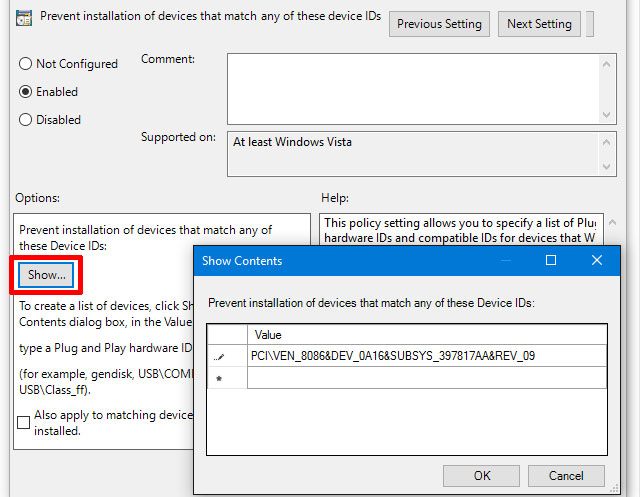
10. Disable automatic driver updates
Disable automatic driver updates
Did you know that Windows 10 also updates device drivers without your explicit permission? In many cases, this is useful, as it aims to keep the system as up-to-date as possible.
But what if you run a custom driver, or perhaps the latest driver for a certain hardware component has a bug that causes your system to crash? This is where automatic driver updates do more harm than good.
To disable automatic driver updates, enable:
Computer Configuration > Administrative Templates > System > Device Installation > Device Installation Restrictions > Prevent installation of devices that match any of these device IDs
After activation, you will have to provide hardware IDs for devices for which you do not want automatic driver updates. You get these through Device Manager, which takes a few steps.
11. Hide Balloon and Toast Notification
Desktop notifications can be helpful, but only if they provide something of value. Most of the notifications you see are not worth reading and are often distracting.
Enable this value to disable balloon notifications in Windows:
User Configuration > Administrative Templates > Start Menu and Taskbar > Turn off all balloon notifications
Starting with Windows 8, most system notifications switch to toast notifications. Therefore, you should also disable them:
User Configuration > Administrative Templates > Start Menu and Taskbar > Notifications > Turn off toast notification
This is an easy way to prevent distractions from notifications.
12. Clear OneDrive
OneDrive is included in Windows 10. Although you can uninstall it like any other app, you can also stop it from running by using a Group Policy entry.
Disable OneDrive by enabling:
Computer Configuration > Administrative Templates > Windows Components > OneDrive > Prevent the usage of OneDrive for file storage
This will remove the ability to access OneDrive from anywhere on the system. It also removes the OneDrive shortcut in the File Explorer sidebar.
13. Turn off Windows Defender
Windows Defender manages itself, so it will stop running if you install a third-party antivirus application. You can enable this Group Policy entry if the tool isn't functioning properly for some reason or if you wish to entirely disable it.
Computer Configuration > Administrative Templates > Windows Components > Windows Defender > Turn off Windows Defender
While it can be easily disabled, Windows Defender is a good enough security solution for most people. Be sure to replace Windows Defender with another reliable Windows antivirus if you remove it.
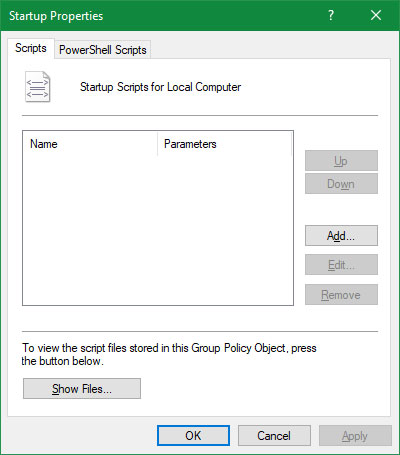
14. When you login/ boot/ shutdown, run the script
When you login/ boot/ shutdown, run the script
The last tip is a bit more advanced, so it probably won't be very helpful unless you're comfortable with batch files and/or writing PowerShell scripts. If it looks good, then you can actually run said scripts automatically with Group Policy.
To set up a startup/shutdown script, go to:
Computer Configuration > Windows Settings > Scripts (Startup/Shutdown)
To set up a login or logout script, go here:
User Configuration > Windows Settings > Scripts (Logon/Logoff)
Doing this allows you to select the actual script files and provide parameters for those scripts, so it's pretty flexible. You can also assign multiple scripts to each trigger event.
Note that this is not the same as starting a specific program on startup.
Check out some more articles below:
Remove all malware (malware) from Windows 10 computers.
Instructions to activate and customize the Virtual Touchpad on Windows 10
How to enable or disable SuperFetch on Windows 10/8/7?
One of the "worst" problems that users often encounter on Windows 10 is the black screen error.
The black screen error can occur in some situations on Windows 10, stemming from problems related to the graphics card, the connection error between the computer and your monitor, the error occurring during the installation of the operating system, updating to new versions, etc., or simply happening randomly at any time.
In the article below, the administrator will guide you with some solutions to fix the black Windows 10 screen error.
In addition, if you encounter a black screen error on Windows 7, 8, or 8.1 computers, readers can refer to the steps to fix the error here.
Steps to fix a basic black Windows 10 computer screen
1. Black screen error during installation
Once there, try turning off the computer by pressing and holding the power button for a few seconds. If using a laptop, you can unplug the charger and remove the battery.
Unplug all unnecessa...
Microsoft is currently A/B testing a native dark style for the ChatGPT-powered Bing.com, and it has finally begun distributing out Bing.com to Google Chrome and Safari. On Windows 10 and 11, we got a pop-up that allowed Bing AI access through Google Chrome. It appears that certain people can also access Bing AI through Safari.
One of the most cutting-edge and effective language models for users is Bing AI, which is powered on ChatGPT-4. Since late February, Bing.com AI support has been accessible to Microsoft Edge users. Now, Microsoft is beginning to expand its support to all browsers, including Google Chrome and Apple Safari.
Bing AI pop-up in Chrome | Image Courtesy: Thewindowsfan.com
Anyone may now test Bing AI in Chrome thanks to a new pop-up that has begun to show in the taskbar of Windows 10 or 11. In our experiments, Google Chrome's native dark mode support allowed us to access Bing AI. The screenshot below illustrates how the white background changes to a black...
Windows 11 is considered more beautiful and aesthetically pleasing than Windows 10. However, not everyone likes the new things that Windows 11 brings. If you have already upgraded to Windows 11 but do not like its interface and do not want to return to Windows 10, you can try the customizations below.
Customizing the interface, also known as a custom interface, is not as popular as before. However, it is still very useful in case you want to refresh your computer. In this article, the administrator will show you how to customize the Windows 11 interface to become macOS.
A video tutorial on customizing the Windows 11 interface to become macOS was made by YouTube channel Tech Rifle. To be successful, you will have to combine a variety of custom software, tools, and themes. This process requires you to perform meticulously and accurately. If only one step is wrong, the results will not be as expected, and the installation process will not be successful.
Things you need to p...
 Note:
Group Policy Editor is not available on the Home and Standard editions of Windows. You must use the Professional or Enterprise edition to use Group Policy.
Note:
Group Policy Editor is not available on the Home and Standard editions of Windows. You must use the Professional or Enterprise edition to use Group Policy.







Nhận xét
Đăng nhận xét